Solved Applying the pallette.

Question that is answered or resolved.

Grit

Well-known member
Hi guys
Since I came across IMT !
The sprites over there are conveniently packed and in order but isn't ready for use in Openbor.
I could use some guidance with regards how to use PalApply on those .png.
Like @DCurrent mentioned it would reduce my workload by 100% since I use a sprite sheet along with ASU and begin to cut.
The issue I became accustomed to was adding the offsets to each sprite.
@machok
I would really appreciate your input on this even though you using .gif
With this hurdle out the way I could take a crack at custom scripts...
Currently reading the wiki on it and I want a bit more control over what can be done in the game but adding a pallette to multiple png files is a priority.
 
You asking about how to use PalApply?
Yes! Please...
I usually apply a pallette to a sprite sheet with Gimp but I want to ditch sprite sheets all together and use Infinity Mugen Team sprites since they perfect.
The goal is to add a pallette to multiple sprites! A
batch of sprites in this regards.
 
Sorry don't really understand since my English is bad

Maybe this one you need?
Alferd Spritesheet Unpacker

Your English been on point!

I been using ASU and this method has it's own issues!
The sprites are not aligned correctly and requires that each frame has its own offset.
Lets just say I want to add a pallette alot of images and use them in Openbor.
How did you apply the pallette to sprites for '89?
I don't want to use ASU anymore.
I want to a pallette to .png files like this one of Ken
 

Attachments

  • MVC2_Ken_280.png
    MVC2_Ken_280.png
    12.7 KB · Views: 1
You can use Fighter Factory for that. Keep in mind that even made for working with Mugen, Fighter Factory has many cool tools - and it's palette tool is one of the best tool we have, beating some paid apps like Phosothop and others.

Just go to TOOLS > ADVANCED PALETTE EDITOR.
There is a button for applying a palete from an image to all images in a folder

I've made a tutorial here and you can do both ways - create a palette from many images and applyin a palette to many images Tutorial - Palettes, The Easy Way
 
I grab those sprite packs from there too and they are totally useful when I want to apply palettes for them. Also, that's because I believe it's meant for any user to use those sprites for whatever purpose they want to use for. It can be used for anything including any game engine such as Mugen, OpenBOR, etc. You are free to use whatever you want.

I have two methods for applying character palettes. It's either I use each character palette by separating the folders of the fighter sprites from his or her own projectiles and miscellaneous stuff (method 1); or I create a sprite sheet (it doesn't have to be full character sprites though) combining those that are from a specific character sprite pack (method 2). (I'm using GIMP BTW.)

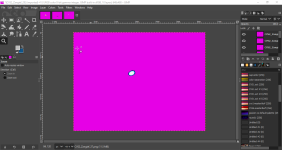
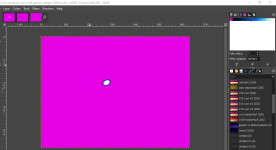
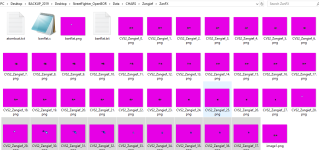
For example, in method 1, which is about separating sprites for unique palettes, I create the FX folder(s) in Zangief folder from Capcom VS SNK 2 and place the miscellaneous effect sprites into its respective folder(s) if you like. What you want is to create a separate palette for its respective folder and not create a palette mess, but I always use images as palettes. In Zangief's folder, Zangief has 16 colors (background color included), his banishing flat has 16 colors, and the other one has 15 colors. For the banishing flat or any other effect, if you are not very sure about how many colors they have, choose one effect sprite first and open it (Image A). Then drag those related frames (which are for animation) into the layer tab (Image B). Index the whole image from the layers and you will find out that it collects all the colors from each and every single layer opened (Image C). You already know how to assign the background color as first box, so I don't need to tell you. What I do after that is that I save it as an image, especially as .png. Look at image A which I saved it as banflat.png as a unique palette.

Image A:
1-20-2024 12-29-21 AM.png

Image B:
1-20-2024 12-37-00 AM.png

Image C:
1-20-2024 12-39-03 AM.png

Since I know you're an absolute rookie to coding, try separating those effects into different folders. That way, you can easily apply palettes without making a mess.

You asking about how to use PalApply?
I am using PalApply_1.0. There's a batch mode there and yes we can convert to .png or .gif

View attachment 6803


I prefer using PalApply v2 over v1 because when you apply palettes, it only accumulates the colors you are using, and it helps decompress each of its file size smaller. That means it doesn't fill all unused blank boxes into the color table unlike v1 does.

It's getting late. I'll share with you method 2 later when I have time.
 
There is a button for applying a palete from an image to all images in a folder
This is exactly what I'm looking for!
I will give FF a shot and see what else it has!
If I'm not mistaken FF made it's way into CMT
correct?

Since I know you're an absolute rookie to coding
@maxman is such a CHAD
The first method is what I want to replicate!
I been applying a pallette a sprite sheet with all the sprites I intend to use.
I'm absolutely a rookie in most cases but I try.
 
I thought I finished explaining method 1, but I realized there must be something I missed. If you're confident enough to know that Zangief has 16 colors, since Capcom carefully made him into 16 colors which were originally made in .gif at that time (in the 90's) for their game developments (starting with Street Fighter Alpha 2 or X-Men VS Street Fighter), you're free to use one of the images as a palette (if indexed). However, the color palette for projectiles and effects is a different story because you don't know how many colors each projectile/effect has in frames. For example, one of the frames from its animation for Hadoken has 13 colors. Some frames may have less than 15 colors, while some have 15 exact colors. This is why I drag those related sprites for animation into the same place after I opened the first frame of the animation, so that I can have the exact same colors as a unique palette. You don't have to drag hundreds or thousands of character frames into the layer tab just for the sake of having its own palettes. That's gonna take way too long to wait, depending on how many images you drag into it for your computer or program to read, unless you have something to kill time IMO. It's up to you if you want to do it, but just watch out for how many colors and what frames you are going to grab or use for your palette.

1-20-2024 9-18-57 AM.png

Sorry for sounding like I was overstating things about it. It's just that I was talking about my own experience on this issue.

Here's method #2. Palette ordering and editing.

First of all, I open up these 3 sprites. One is a fighter, and the other is a projectile or something, as well as an image that has both. For example, I open up Lucky Glauber from KOF98 along with his basketball sprite (image D). But for the basketball sprite, like Zangief's Banishing Flat aura or Ryu's Hadoken, I have to drag the basketball sprites not only for animation from Lucky, but also to collect colors for a palette (image E).

Image D:
1-20-2024 9-04-33 PM.png

Image E:
1-21-2024 12-01-14 AM.png

I know the basketball has 14 colors because I opened one image of it. But if you drag those as I mentioned, you'll see there are colors in there.


@maxman is such a CHAD
What? No. 😄 How could I be a Chad?

I'm still not finished with method 2 yet.

To be continued....
 

Attachments

  • 1-21-2024 12-01-52 AM.png
    1-21-2024 12-01-52 AM.png
    30.5 KB · Views: 1
Back
Top Bottom