
[TUTO] Process of pixelating a photograph in Paint

O Ilusionista

Captain 100K
This is a tutorial I've found and which could be useful for people who uses digitalized sprites, like DanteDevil.
The main image can be NSFW (nothing too much, its just a butt anyway), so instead of including the the image here, I will just put the link

Process of pixelating a photograph in Paint
by Kakarotho
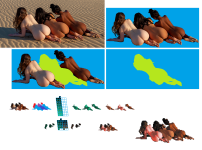
1670434067999.png

Top left: good quality photograph that I'm going to edit to have it fit in with a klassic MK3 background. The entire point of this is to not just reduce the size of the photo and paste it into the arena, but to also reduce the total amount of colors that are in the image. This has to be done in order for it to look pixelated, as MK sprites and background use a limited amount of different colors. If you only downsize the image, the small version will still contain hundreds of different color pixels.

Top right: I first extract the girls out of the background here, as I'm only interested in using the people in the image, and not the sand that surrounds them. This is done manually, as Paint does not have an option to select individual portions of an image. You could reduce the size of the image and then cut them out of the background, which is a lot less work, but leaving the image full size allows for more accuracy.

Then I specifically extracted the middle girl entirely. Normally, this isn't needed for most edits, but I wanted to give them all their own individual palette, and it's easier to see where one girl's body ends and another's body begins when the image is full size. Doing this on the small size image is possible, but again; this will be more accurate. The girls can now be separated, and edited individually.

Bottom left: that's a 21% downsized version of the original, with no edits done as of now, so that small image on the left contains many, many different colored pixels and can't be used because it looks too realistic when compared to the game's style. Next to it, I extracted the women's hair to work on the hair separately. The 21% is just the result of trying out different sizes; whatever works for where they're supposed to be in the arena. I often see problems with perspective and distances in mugen edits and their backgrounds. Characters or object should become smaller the further away they are from the viewer, and making them too large or too small ends up looking wrong.

There's the green palette I always use to convert the colors. That's the hardest part. You zoom in, and pick individual pixels as you replace them with the green colors. I always go from dark to light. There's actually an extra step in there, which is that I first use very distinct colors to replace the original pixels with: colors that can be easily distinguished between: red, orange, blue, yellow, purple, pink, etc. That is because if you start with the green palette, the dark greens can still be tough to distinguish from other dark pixels that are in the original image, so that it's difficult to which colors you've already converted to greens, and which haven't been replaced yet. So when you use vivid and easily distinguishable colors, that's no longer an issue. Once you've done this to a number of colors, you then convert the vivid colors to their green equivalents in the palette, and continue, untill the entire image has been made green. Now, the color count is reduced to a total amount of 33 colors (in this case), which is well within the parameters of what MK games usually have. You then pick a palette for the skin, and you again replace every green color to a skin color. Picking a palette for this can be done either by using some kind of existing palette (from within the arena, or using a skin color palette from the game's characters), or you can pick the palette yourself, freely, or you could use the original photo's colors. For these, I combined using some colors from the original image with picking colors myself.

Bottom right: the final result, enlarged to 300% the size of the small version, just for a better view. When all is done, you add the hair, put the girls back to their proper positions, and that's it. You can now place the girls in the background, wherever they're intended to go, and work on the sand (in this case, since they're in Jade's Desert), and where their bodies touch the sand. Adding shades and shadows.

I hope at least some of this makes sense to anyone trying to figure out how this is achieved. Note that this is a tedious process, and that Photoshop has options to do this stuff automatically, I believe. It's just that I don't use Photoshop, and I actually enjoy the manual process itself. I would still recommend trying this out for yourself, as it certainly helps your artistic skills, adds to your attention to detail, and it's generally just good to have this approach as an option, if you're into editing stuff for mugen games. But if you prefer Photoshop because it's easier and faster, then you should really focus on Photoshop, I think, as this right here does take time and effort, and isn't easily achieved. Really, I just like working like this, but that's just my personal preference. Alright, good luck and thanks for reading my essay, lol.

The process with Photoshop would be pretty much the same.
 
At first sight (I haven't already read all of it), it seems complicated but could be a precious help in the future. I'm not a MK fan but I still have a possible char to make thanks to some videos I made a long time ago to do it. Thus thank you!
 
While it is very helpful - it is still a pain -

there has to be a better way to churn out sprite faster with street fighter 2 -like qualities.

I wonder if we could find a way to use one of those AI deepfake tools or something similar to do it...
 
Hi,

Completely new here with a complete noob queston.

This post seems to be closest to what I want to achieve so I'll ask here.

I am thoroughly enjoying Double Dragon Reloaded Alternate by Magggas. It's an awesome tribute the one of the best games ever made in my opinion. I love it. I've been playing it solidly for about a week now and am discovering other Openbor games made by the creative people out there. But Double Dragon is the ulitimate for me personally. So, I thought I could personalise my copy....

However, curiosity got the best of me and now I would like to add a photo of my car to the garage at the very start of the game. I have theoretically done it by resizing the picture, cutting out the unwanted background and making it look pixelated. So much so that it's visable in Openborstats on the panel view of the stage.

But, when I load the actual game, it crashes to desktop when that scene loads upon starting the game?

I assume its because of the way I edited the picture. I just used paint and saved the output as .gif (internet quality)

I'm stumped as to where to go from here so anyone who would like to reply would be of help.

I've added the edited version of the stage below.

Thanks,
Charles

 
Welcome Charles.

First, the engine isn't crashing - it's shutting down. It's an important distinction, because when the engine sees a problem, it shuts down and records the reason to its log. If you post the log (enclose in Code tags please), we'll be able to see why. It's also a good idea to post the image file you saved.

That said, I see one issue right off the bat. Here's some advice when using Paint to do sprite work: Stop using Paint to do sprite work. Among many other problems, it tends to corrupt the image format on save. If you don't have access to Photoshop, download GIMP. It's free as dirt and the best tool next to Photoshop (I don't agree, but some people would even say its better).

FTR, I don't mean that as any sort of knock on this tutorial - but you can follow the steps as written with any image editor, so why not use one that won't mess up the work when you're done?

DC
 
Hi Damon,

Thanks for replying. Sorry, I did realise it wasn't a crash per se, just the way I wrote it I guess. I even looked at the log to see what the problem was. It just couldn't access the file which really just backs up your answer to my question. I didn't know about GIMP and I'll be getting a copy of Photoshop later this week to help fix the issue. I just used paint because I had it.

I actually thought I attached an image of the edited panel in my first message but obviously not. 

Anyway, thanks again for the reply. I'll see if I can make it work with the new program

Charles
 
Charles,

I DO see your attachment - just overlooked it before like a bonehead.  :P

I'm turning in for the night, will try to take a look in the morning and see if I can note anything about the image file.

DC
 
Hi Charles :)

I've tried using the attached image and OpenBoR can't read that image. I had to set it as RGB and save it against as gif to make it work. But the image is messy.
So as Damon Caskey posted above, get GIMP and recreate this edited image again to fix it.
 
Hi,

Thankyou to Bloodbane for checking the image I supplied. I have no doubt its messy at all since I don't really know what I'm doing.

So I got a version of Photoshop CS2 and I'm playing around with the image but I have a lot to figure out the process of inserting in my jpeg image to the original image. I don't really understand all the features at this point so I'm just trying find out what I actually need to do other than the obvious or resizing and cutting out the background of the  phtoto image.

The original background is listed as Indexed Colour 8 Bit so my plan was just to convert to the same with my picture but as I'm sure you both know, Photoshop is an indepth program.

Is there a simple way of doing this or a tutorial on these pages out lining the steps so I could learn the basics of converting and inserting images that aren't a complete mess. As stated in my original message, this post was the closest I found. If I can make this work I'll probably tinker more in the future but at this point, I just don't know what I'm doing enough to do it properly at this stage.

Thanks again for your help thus far.

Charles
 
I realise this is an old thread but its pinned and no better solution seems to have been found. If you dont have it yet grab PixelOver on Itch.io, even the free version is basically the whole program minus some export features (full version worth it to me). This program is sick, allows you to limit the pallette to however many colours then change all those colours. Ive been using it to run 3d models through and they come out pretty good as sprites. Would work for photos too, and background removals
 
I realise this is an old thread but its pinned and no better solution seems to have been found. If you dont have it yet grab PixelOver on Itch.io, even the free version is basically the whole program minus some export features (full version worth it to me). This program is sick, allows you to limit the pallette to however many colours then change all those colours. Ive been using it to run 3d models through and they come out pretty good as sprites. Would work for photos too, and background removals
Oh yeah, I own Pixel Over too and its great
 
Back
Top Bottom